
How to Set up Gorgias integration in Coco AI
How to Connect Coco AI with Gorgias
This article shows you how to connect Coco AI with Gorgias so human support tickets are created automatically when a WhatsApp conversation needs escalation.
Once connected, Coco AI will pass the full WhatsApp conversation to Gorgias and let your team reply directly from the Gorgias inbox.
Step 1: Start the Gorgias Connection in Coco AI
Log in to your Coco AI dashboard.
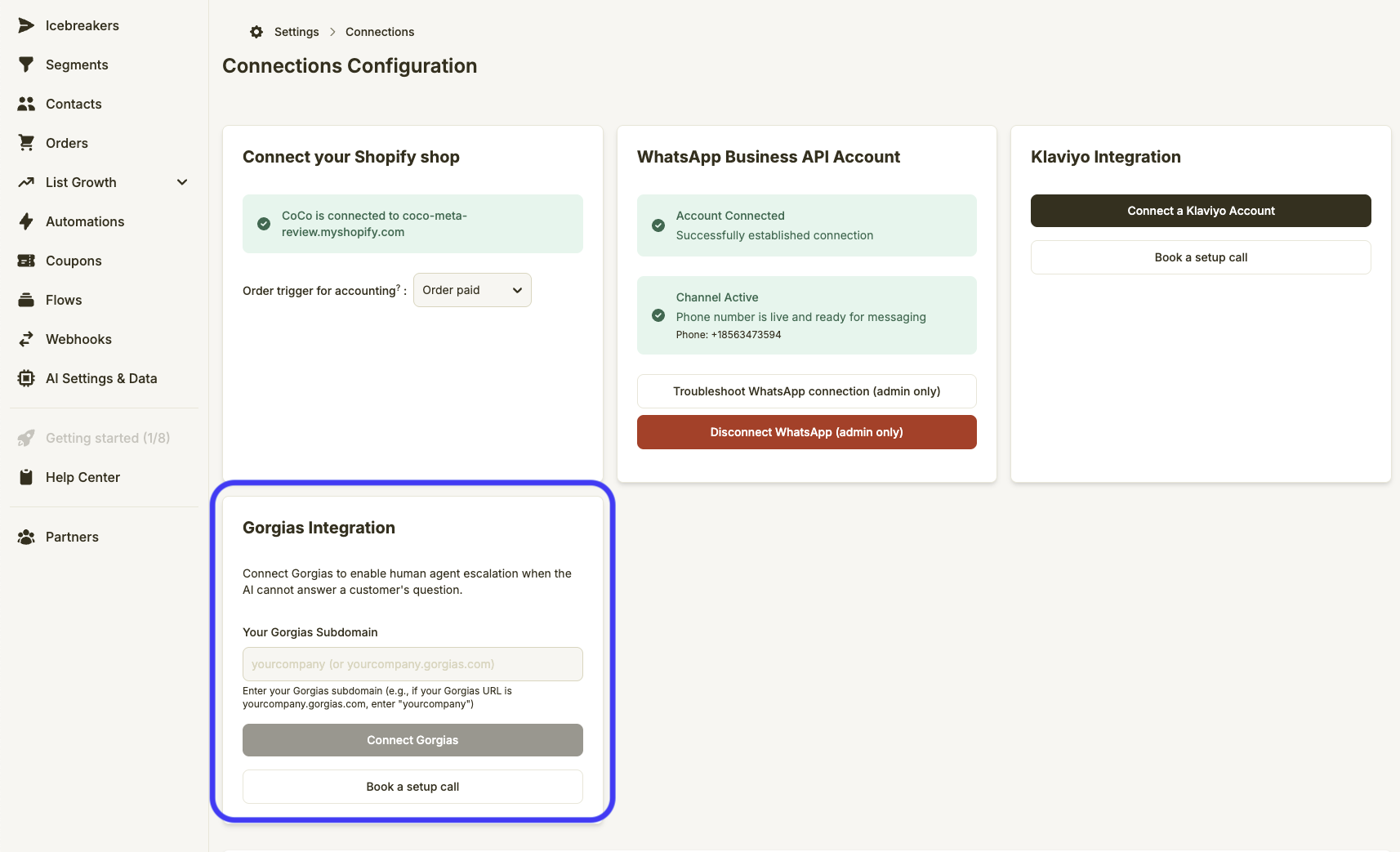
Go to Settings → Connections.
Select Gorgias.
Enter your Gorgias subdomain.
Click Connect Gorgias.
You’ll be redirected to Gorgias to approve access.
Step 2: Authorize Coco AI in Gorgias
Review the permissions requested by Coco AI.
Click Authorize App.
Once authorized, you’ll return to Coco AI and see that Gorgias is connected successfully.
What success looks like:
Your Gorgias integration shows as Connected, with options to troubleshoot or disconnect.
Step 3: Configure Escalation Settings
After connecting Gorgias, configure when conversations should be handed off to a human.
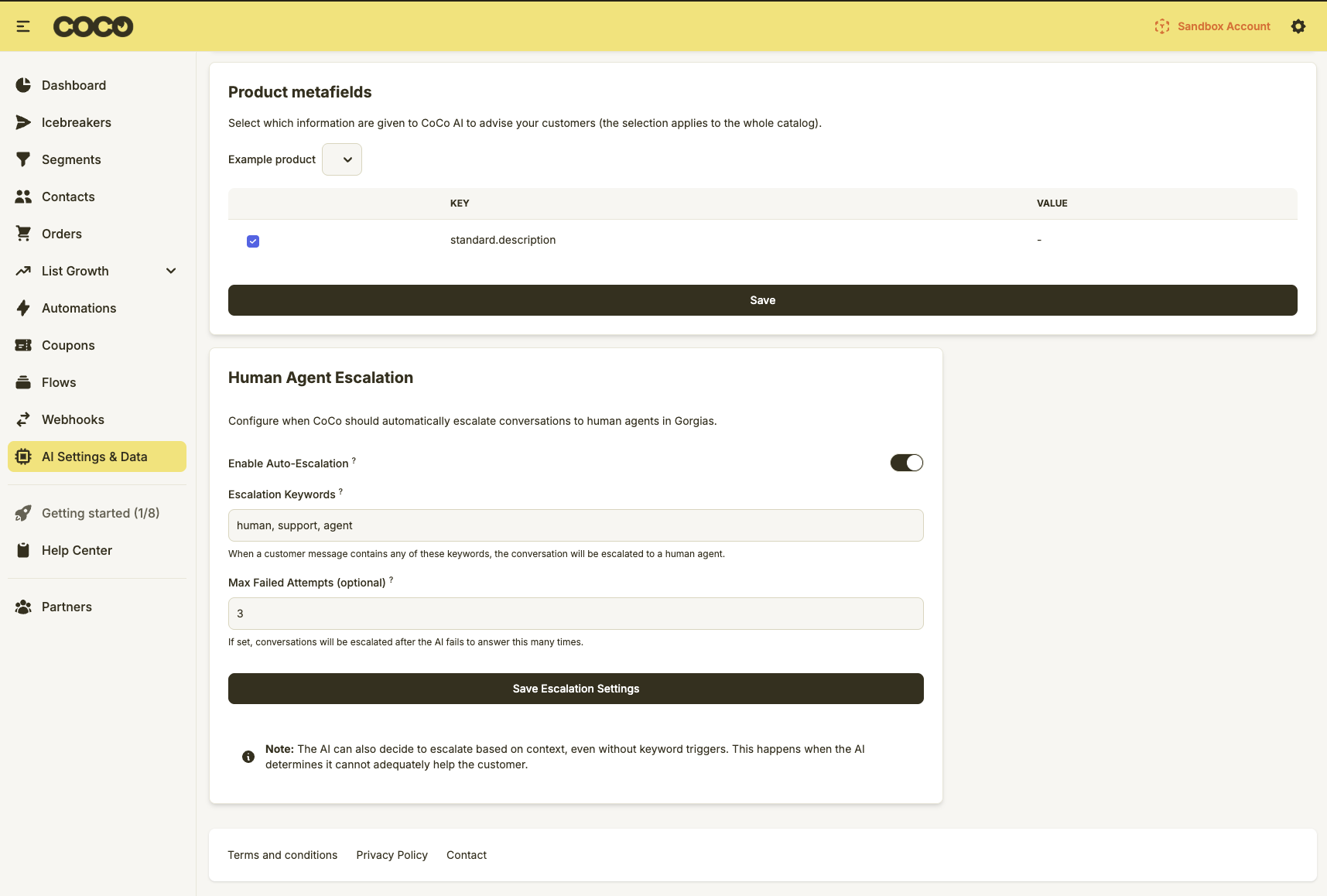
In the Coco AI dashboard, open your WhatsApp settings.
Set escalation triggers, such as:
Keywords (for example: “speak to human”, “urgent help”)
AI confidence or sentiment thresholds
Choose how escalated tickets are handled in Gorgias:
Default inbox
Assignment rules (unassigned or specific team)
These rules control when Coco AI creates a Gorgias ticket.
Step 4: Test the Integration
Always test before going live.
Send a test message to your WhatsApp number.
Type an escalation phrase like “speak to human”.
Open Gorgias → Unassigned Inbox.
Confirm a new ticket appears with:
The full WhatsApp conversation
An escalation label or context
Reply to the ticket in Gorgias.
Check that the reply is delivered back to WhatsApp.
What success looks like:
Messages flow both ways between WhatsApp and Gorgias.
Tips & Best Practices
Use clear escalation keywords customers naturally type.
Start with unassigned tickets so nothing is missed.
Keep WhatsApp responses short and conversational for best deliverability.
Test escalation after any changes to AI rules or WhatsApp settings.
FAQs & Troubleshooting
When does Coco AI create a Gorgias ticket?
A ticket is created when a WhatsApp message matches your escalation rules, such as specific keywords or low AI confidence.
Where do escalated tickets appear in Gorgias?
By default, they appear in the Unassigned inbox unless you’ve set custom assignment rules.
Can agents reply from Gorgias?
Yes. Replies sent from Gorgias are delivered directly back to the customer in WhatsApp.
Why don’t I see a ticket in Gorgias?
Common causes include:
Gorgias subdomain entered incorrectly
Escalation keywords not configured
WhatsApp not fully connected in Coco AI
Gorgias authorization was not completed
Reconnect Gorgias and retest escalation.
Can a conversation be escalated more than once?
Yes. If a customer requests help again later, Coco AI will create a new Gorgias ticket for that conversation.